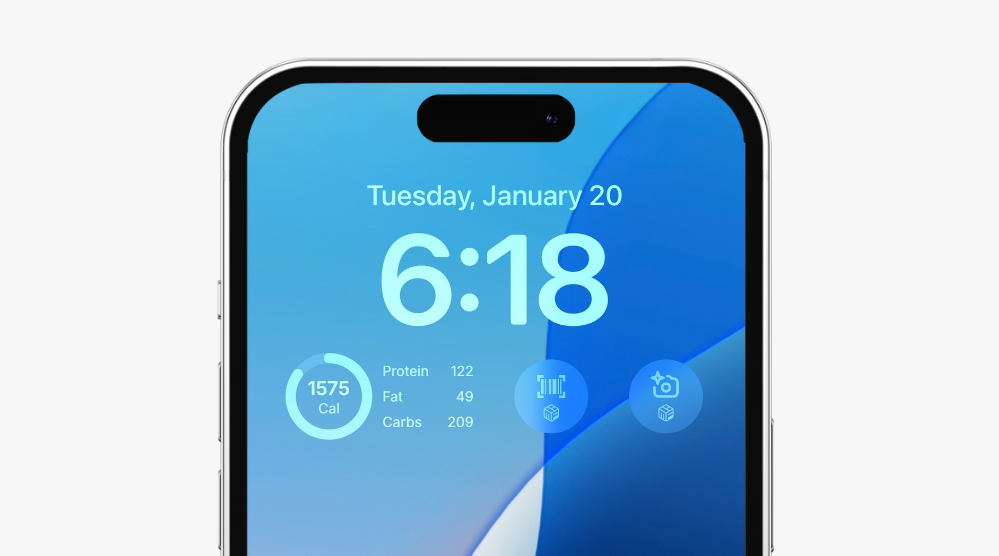
Use Lock Screen Widgets to quickly log foods, scan barcodes, capture meals with AI Search, log bodyweight, and view key nutrition insights, all from your lock screen.
iOS
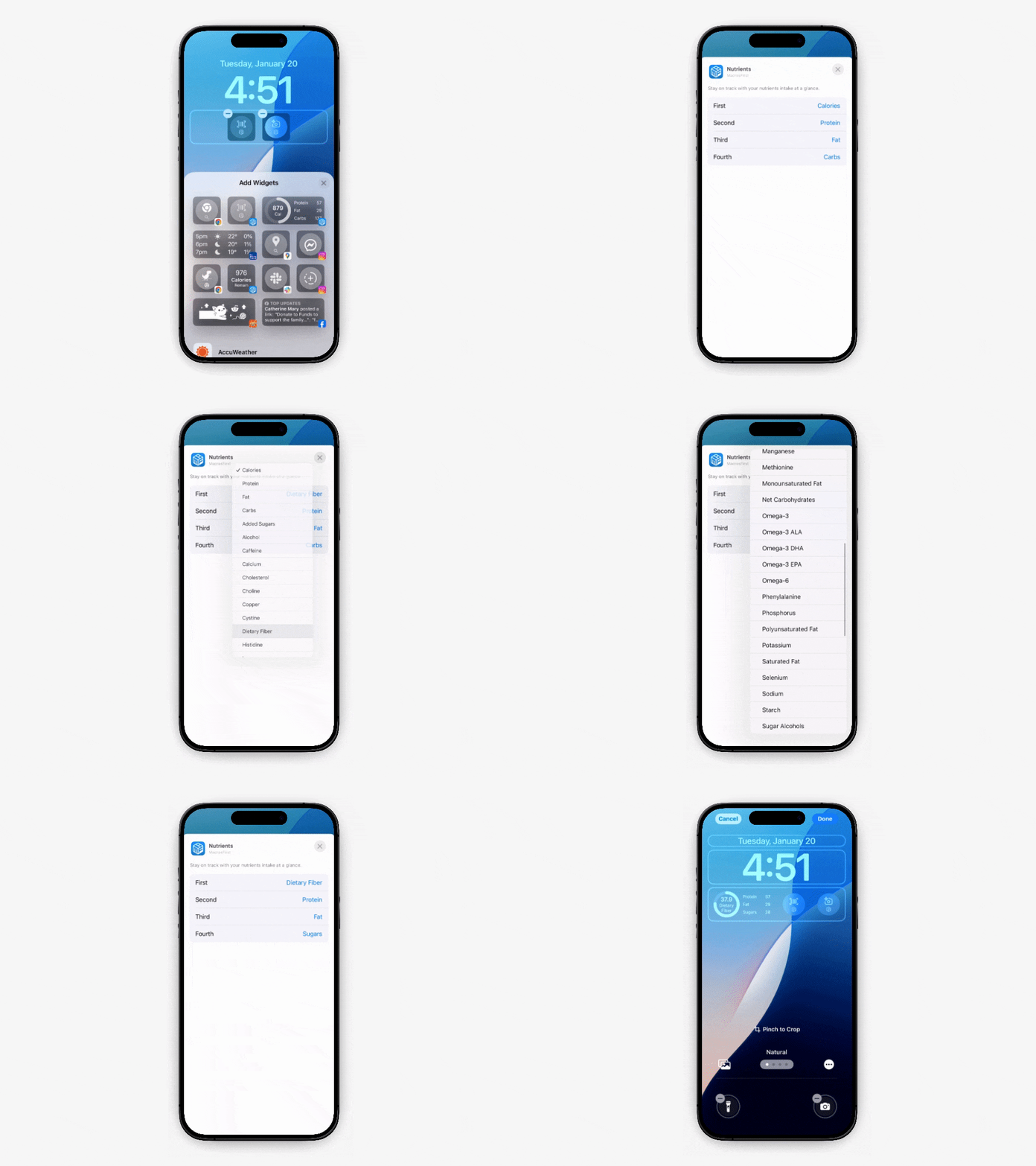
Long-press on your device’s lock screen
Tap Customize
Select Lock Screen
Tap the area beneath the time to add widgets
Scroll and find MacrosFirst in the widget list
Select the widget you wish to add
Repeat to add additional widgets
Tap Done in the top corner to save changes
Note: Lock Screen Widgets are currently available on iOS devices. Support for Android lock screen widgets is coming soon!
You can edit each widget to choose which nutrients it displays.
Tap on any MacrosFirst widget while customizing your lock screen
Select the nutrient (or nutrients) you want displayed
Looking for even more ways to use widgets? Check out our Home Screen Widgets article to learn how to add widgets to your home screen and access additional logging shortcuts.
Home Screen Widgets
Get at-a-glance insights into your nutrients along with quick shortcuts to log food and body weight right from your home screen.