AI Search is one of the fastest ways to log food in MacrosFirst. You can type or speak the foods you ate, paste a recipe or list of ingredients, or snap a photo of your meal and let AI find the foods for you. Whether you're logging a single snack, a full meal, or a multi-ingredient recipe, AI Search cuts down on manual entry so you can log in seconds.
We rebuilt AI Search from the ground up to make it dramatically more accurate at finding the foods you actually ate. Here's how it works.
Most nutrition tracking apps with AI rely upon it to invent the nutrition in the foods it finds which is how you often end up with inaccurate calorie and macro counts that don't match reality.
MacrosFirst works differently. We use AI to identify the foods you ate and then pull the actual nutrition data from real foods in our 100% verified database. No AI hallucinations – you get the speed and convenience of AI with the accuracy you trust.
To find the best match for each food, AI Search now:
Searches our entire database, including Core Foods, which have the most complete and reliable nutrition information.
Reviews the full search results for each food in your query and chooses the foods in our database that best match what you described.
Breaks meals down into their component ingredients so you can see exactly how the AI arrived at the nutrients it returned.
You can access AI Search in two ways:
Tap the 📸 button in the Food Search bar
Tap the ✨ button from the Food Search screen
From there, you can search using text, voice, or photos.
Text and voice search let you enter multiple foods and serving sizes in a single query.
Examples:
1 cup Greek yogurt
12 oz milk
2 eggs and 2 slices whole wheat toast
6 oz chicken breast, 200g rice, 1 tbsp olive oil
You can type your query manually or use your device's microphone button to speak your foods.
AI Search is also great for building recipes. Paste a list of ingredients and AI Search will find each food for you.
Once you've entered your query:
Tap the blue ⬆ button to run your search
Review the foods that were found
Make any adjustments by tapping a food to change its serving size, or swiping left to swap or remove it
Tap the blue ✔ button in the top right corner to log your foods
Photo Search lets you take a picture of your meal or upload an existing photo from your gallery.
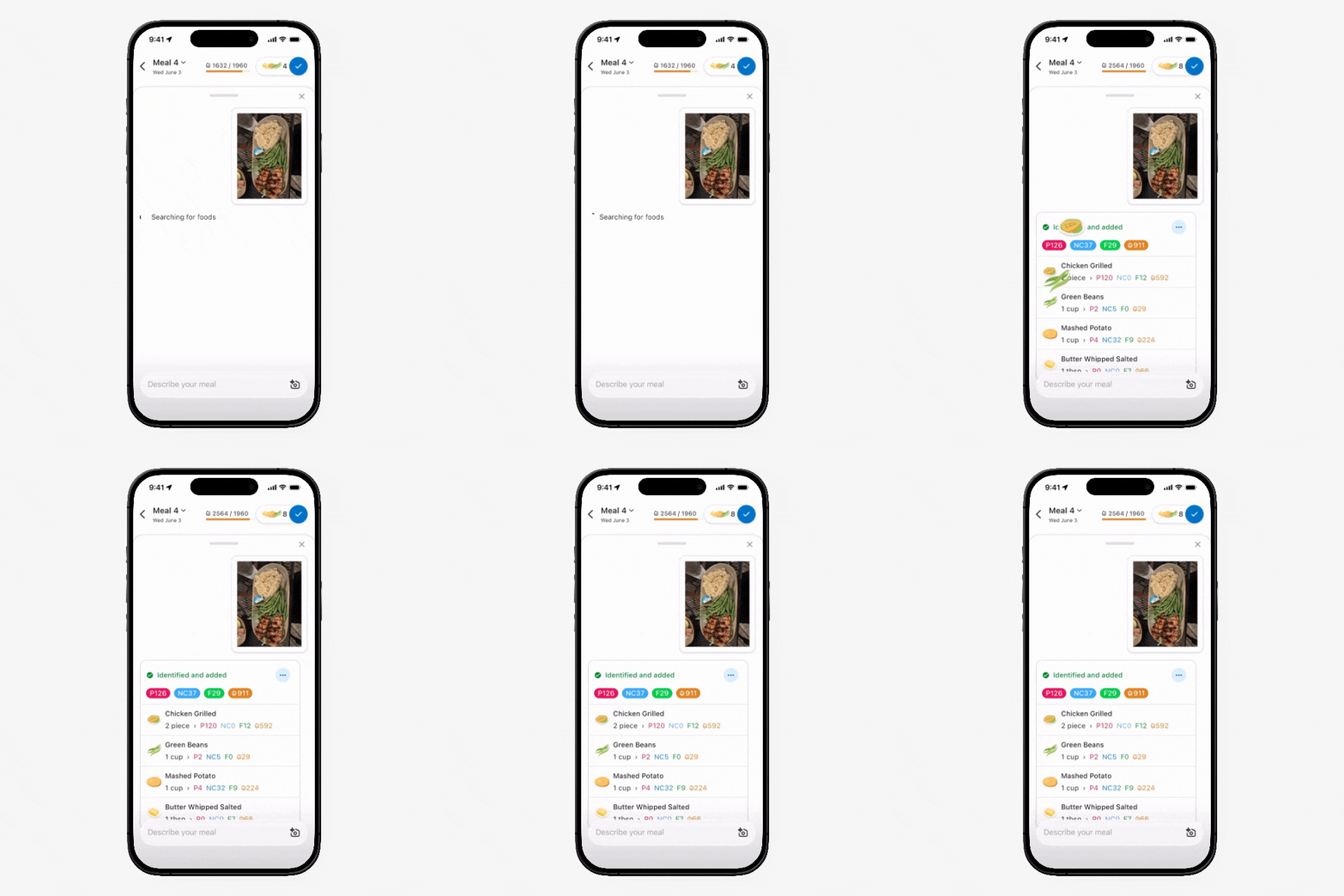
Here's what makes Photo Search special. Instead of trying to match a whole complex dish to a single food item in the database, AI Search first identifies the dishes on your plate, then breaks each one down into its component ingredients — including ingredients it can't see but knows are usually there, like the oil in a stir-fry or the lime in guacamole. It matches each ingredient to our verified database and adds them up to calculate the totals for the dish.
This gives you two big advantages:
More accurate results. Matching individual ingredients is far more reliable than matching an entire complex dish.
Full transparency. You can see exactly how AI Search arrived at the numbers, and edit or remove any ingredient — the totals update automatically.
Add your own context. When you add a photo, you can also include a note describing anything that might be hard to identify — for example, that the crumbled topping on your yogurt is cacao nibs, or what's in a sauce. AI Search uses that context to identify the right ingredients and return even more accurate results.
To use Photo Search:
Open AI Search
Tap the 📸 button
Take a photo or select one from your gallery
Optionally, add a note with any extra context about what's in the photo
Review the dishes and ingredients AI Search identified
Make any adjustments by tapping a food or the dish to change its serving size, or swiping left to swap or remove it.
You can choose whether you want to log the dish or split it into its component ingredients and log the ingredients by swiping the dish to the left and tapping the split icon.
Tap the blue ✔ button when you're finished, or keep using the search bar to add to your meal or recipe
Photo Search is powerful, but AI image recognition won't identify every food or portion perfectly every time. We always recommend reviewing the results before saving.
Occasionally you'll log something we don't have in our database yet. Instead of showing "no results," AI Search will create the food for you by researching it on the web and estimating its calories, protein, carbs, and fat.
We always tell you when a food was created this way by adding a ✨ to its name. That way you can tell at a glance which foods came from our verified database and which were AI-generated, so you can give those an extra look or adjust them as needed.
AI-generated foods behave just like any other food — you can change the serving size, edit them, or remove them. Like Quick Track foods, they're created just for that log and aren't saved to your foods list for future searching.
Before finishing your search, you can make changes to any food that was found.
To change a serving size or serving unit, tap the food to open the serving calculator.
To replace a food, swipe left on the food, tap the ⇋ icon, and search for a replacement.
To delete a food, swipe left on the food and tap the 🗑 icon.
This is just the beginning for MacrosFirst AI. We're expanding it to help you discover recipes, understand your nutrition trends, and more — stay tuned.