
Step tracking is a useful way to monitor your daily activity and build consistency with movement habits. Whether you're working toward a specific step goal or simply keeping an eye on your activity levels, MacrosFirst makes it easy to record and review your daily step counts.
If you’ve integrated MacrosFirst to Apple Health or Google Health Connect, then your step data will automatically import to MacrosFirst.
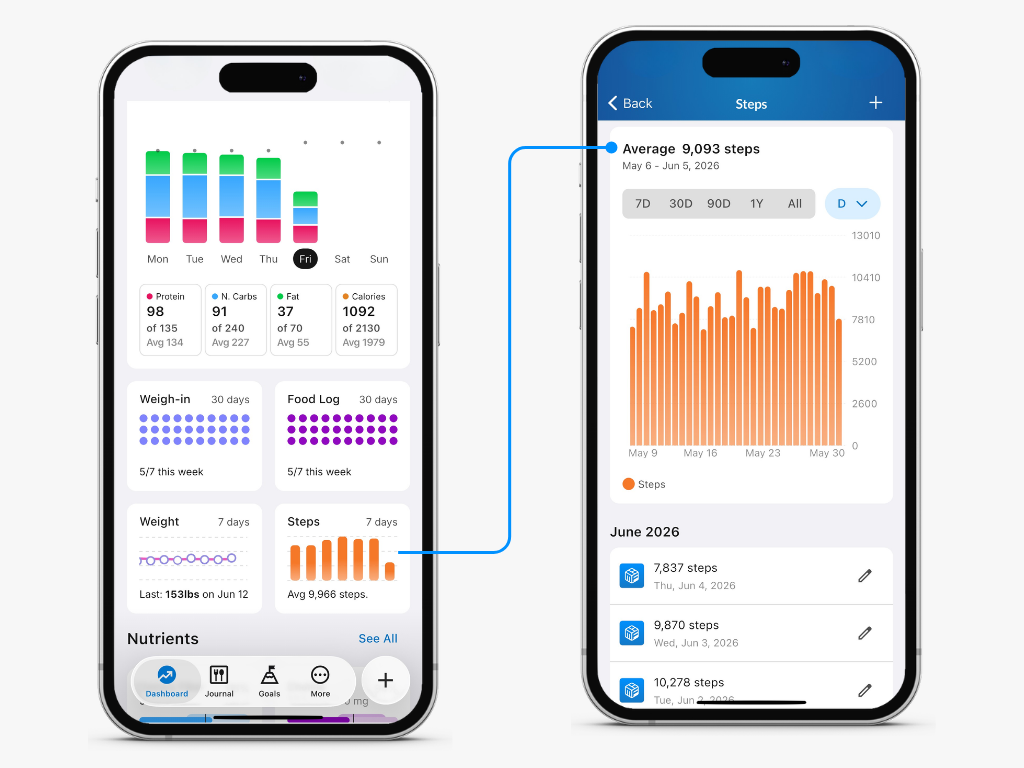
You can find Step Tracking on the Dashboard below the Macronutrients chart.
Automatic Step Tracking
If you use Apple Health or Google Health Connect, you can connect either service to automatically import your step data into MacrosFirst.
Once connected, step data is synced approximately every 20 seconds. During the initial sync, MacrosFirst imports up to 30 days of historical step data from the connected platform.
For setup instructions, see our Apple Health and Google Health Connect integration articles.
Adding, Editing or Deleting Step Entries
While most users automatically import their step data, you can also record or modify step data in MacrosFirst.
To manually log a new step entry, tap the ➕ in the top right corner, enter your steps, and tap save.
To edit or delete an imported or manually logged step entry, tap the ✏ button and enter your new step value or the 🗑 button to delete the steps for the day.
Note that creating a new step entry will overwrite any previously imported entry for the same date in MacrosFirst only. Edited or deleted step entries are not synced back to Apple Health or Google Health Connect.