Daily Meals lets you build a recurring schedule of meals that shows up on your Journal automatically, every day of the week. Each meal can have its own custom name and optional nutrition targets, so your Journal always matches how you actually eat.
Premium members can also add foods to their recurring meals that appear in their Journal automatically each day, ready to log with a single tap. If you eat the same breakfast every morning or take the same daily supplements, this is a huge time saver.
Recurring meals used to live inside your Daily Goal, where they were called "goal meals." They now have their own home in Daily Meals and are scheduled independently of your Daily Goal. That means you can fine-tune your meal schedule without touching your macro targets, and vice-versa.
You'll find your meal schedule under More > Daily Meals.
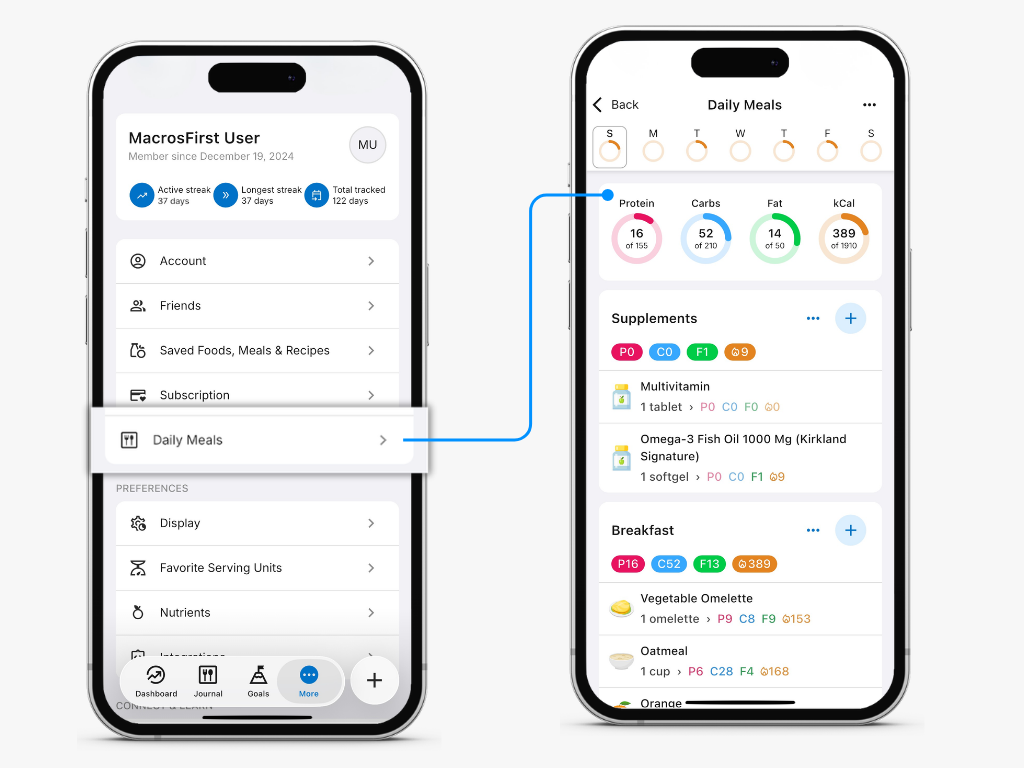
All MacrosFirst users, free and Premium, can fully customize their daily meal schedule. From the Daily Meals screen, you can:
Edit a meal's name or nutrient targets — tap the ... button next to the meal name.
Add a new meal — scroll to the bottom and tap Add Meal.
Reorder your meals — tap the ... button in the top-right corner of the screen.
For free users, the meals you set here apply to all seven days of the week. Edits to your meal names, targets, ordering, and which meals exist are applied to every empty day in your Journal — days where no foods have ever been logged — both in the past and the future. Days you've already logged foods to are never changed, so your history stays intact.

Free users get one set of meals for all seven days. With Premium, you can build a different meal schedule for each day of the week — so Tuesday can look completely different from Wednesday.
To customize an individual day:
Tap to More > Daily Meals
Tap a day of the week to select it, then customize its meals just like above.
To copy a whole day to or from another day, tap the ... button in the top-right corner. This is handy when you've built out one day and want to duplicate it to others.
To copy a single meal to other days, tap the ... button next to that meal's name. This is handy when you've perfected one meal and want to reuse it across days.
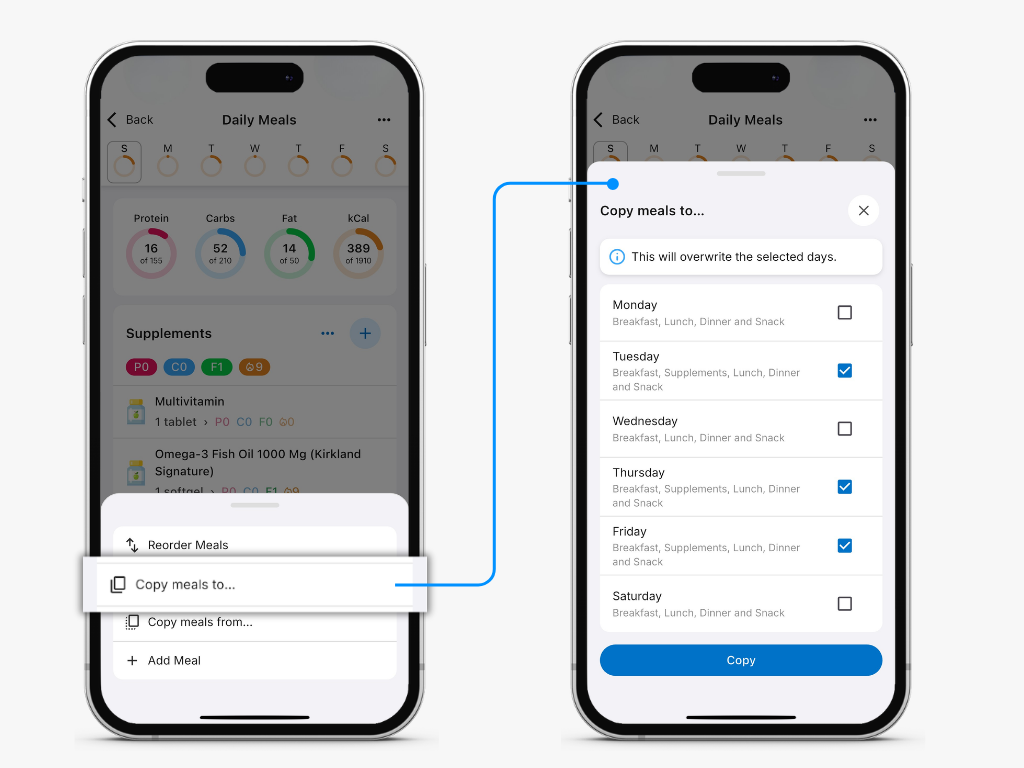
Premium members can also add foods to their recurring meals. Scheduled foods appear in your Journal automatically each day, ready to log with a single tap. If you eat the same breakfast every morning or take the same daily supplements, this is a huge time saver.
To add a scheduled food, tap the + button next to any meal on the Daily Meals screen, then search for the food just like you would in your Journal.
Scheduled foods show up on your Journal as placeholders, with a striped overlay and message above your meals.
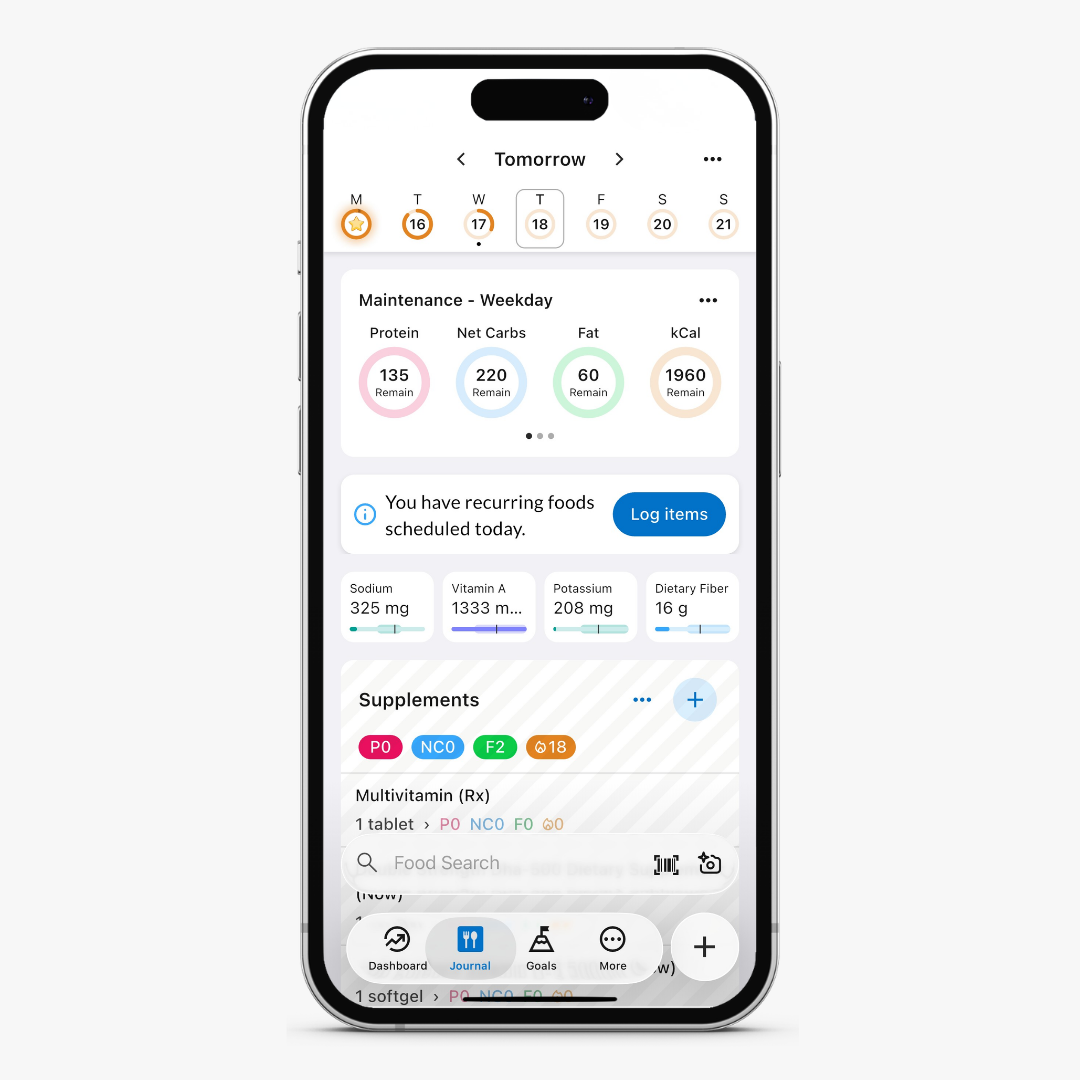
Scheduled foods are placeholders only. They do not appear as logged foods and do not contribute to your nutrition reports until you take an action on that day. A scheduled food converts into a real, logged food as soon as you do any of the following:
Tap the Log Items button in the “You have recurring foods scheduled today” message.
Edit any scheduled food — adjust its serving size, delete it, or reorder it — or edit any meal on that day.
Log any new food to any meal on that day.
Changes to your scheduled foods apply to empty days in your Journal starting today and moving forward. Days in the past, and any day where you've already logged foods, are left untouched — so your history is never rewritten.
If a Premium membership ends after you've set up custom per-day schedules or scheduled foods, your work isn't deleted — the Premium-only pieces are simply paused:
The meals scheduled on your Week Start Day are applied to all seven days of the week. For example, if your week starts on Monday, then your Monday meal schedule is used for every day.
Scheduled foods are hidden from both your Daily Meals schedule and your Journal.
If you rejoin Premium, your custom meal schedule and scheduled foods are restored and reactivated. Scheduled foods resume appearing in your Journal from the date you rejoin Premium, moving forward.
They're now called Daily Meals and live under More > Daily Meals. Your existing meals carried over automatically. The only difference is that they're now managed separately from your Daily Goal, so updating your meal schedule no longer means editing your macro targets.
Not until you interact with them. While a scheduled food is still a placeholder (shown with a striped overlay), it doesn't contribute to your nutrition reports or your streak. As soon as you log the day's items, edit a scheduled food, or log any other food to the day, the placeholders convert into real logged foods and begin counting.
No. Edits only ever apply to empty days where no foods have been logged. Meal changes — names, targets, ordering, and adding or removing meals — apply to all empty days, past and future. Scheduled-food changes apply only to empty days from today forward. Any day you've already logged foods to is never changed.
The targets shown in your Journal's progress rings come from the Daily Goal scheduled for that day, not from Daily Meals. Daily Meals control your meals and, for Premium members, your recurring foods; your Daily Goal controls your daily macro targets.
No — each day needs at least one meal. If you try to remove the last meal on a day, MacrosFirst will ask you to keep at least one before you leave the screen.
Recurring foods are a Premium feature. Free members can fully customize their meals — names, targets, and order — but those meals apply to all seven days of the week, and foods can't be pre-scheduled.